🔶Project Items
Project Items are the components you use to build your game. They are created and edited within the HyEditor and used to assemble the various scene nodes that make up your game world. There are several types of Project Items, each serving a specific purpose, but they also have common concepts that apply to all items.
Creating new Project Items
Within the Project Explorer, to create a new Item you can Right Button in the tree view on a  prefix folder and select
 New Item > [select item] to create an item at that location, or use one of the following methods:
File > New Item > [select item]from the top menu- Press Ctrl+N, S to create a new
 Sprite
 - Press Ctrl+N, T to create a new
 Text
Text - Press Ctrl+N, M to create a new
 Tile Map
 - Press Ctrl+N, F to create a new
 Particle FX
 - Press Ctrl+N, I to create a new
 Spine
Spine - Press Ctrl+N, P to create a new
 Prefab
 - Press Ctrl+N, A to create a new
 Audio
Audio - Press Ctrl+N, E to create a new
 Entity
You will be shown the "Add a new item" dialog which will look like either of these:
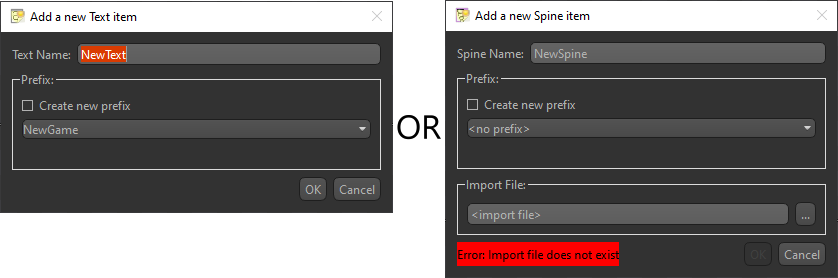
Specify the prefix and name you want for the Project Item. This is where it will be located in the Project Explorer, as well as its "path" to create an instance of it in code. ex. "RootPrefix/SubPrefix/Name" (Note prefixes and names are case insensitive)
Some Project Items require an Import File upon creation. The browse button will open a file dialog with a filter for the expected file type. This file may be located anywhere, and is copied (along with any dependency files) into the project's meta-data.
After creation, the Project Item will be opened and the Properties window will be populated with widgets to modify the item. The center render preview will reflect changes made here.
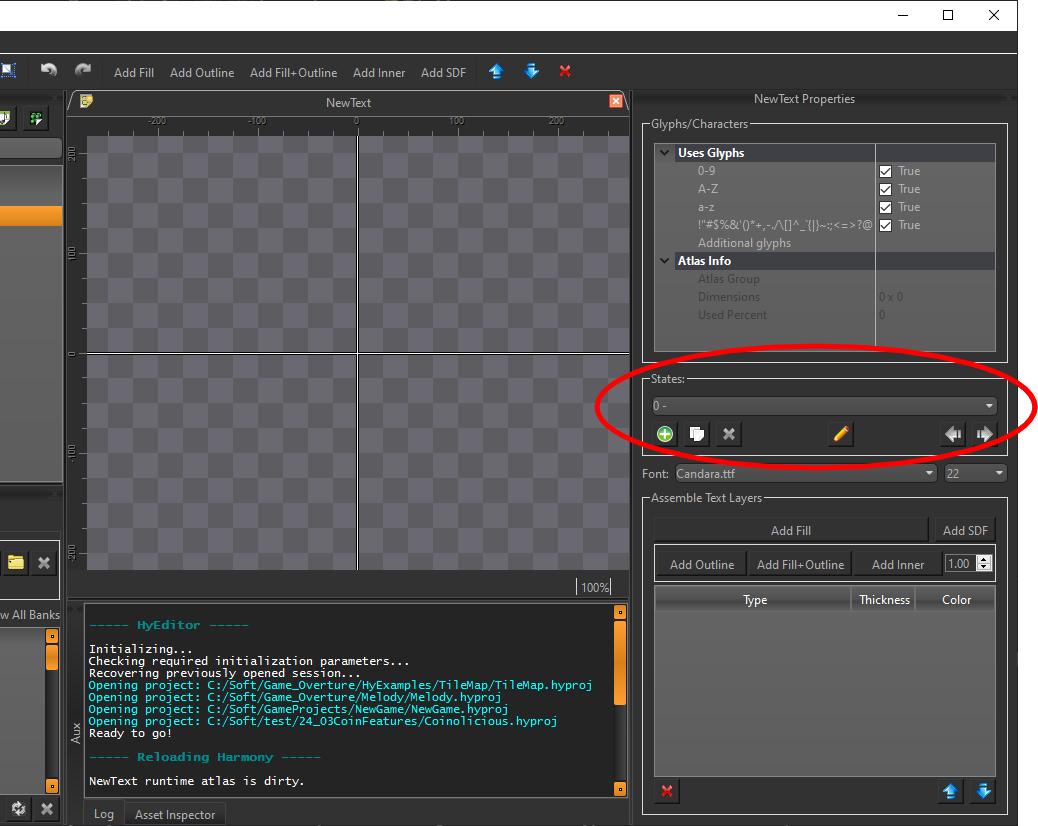
While each Project Item will have different properties, they all share the ability to set 'states' which is circled in red in the above image.
Item States
Every Project Item utilizes the concept of 'states', regardless of which type it is. In the case of a sprite, this can be the different animations a character can do, like idle, walk, and jump. Or if the sprite is a framed painting wall decoration, each state could be a different piece of art. For a text item, each state might be the same font/style but at different sizes, or each state could be the font in regular, bold, and italic. Ultimately how you want to utilize the states for any given Project Item is up to you.
In every Project Item's Properties window, you will find the States Groupbox that looks like this:
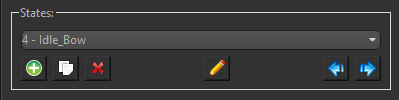
Within the example image's drop-down box, the "4" indicates which zero-based state index is currently selected, and "Idle_Bow" is the name given to the state. The names of states are only used on the Editor's side, and are accessed by index in code.
Add new "blank" states by pressing the  button, or append a duplicate of the currently selected state with the
  button. Rename the state with
  , and arrange states by index with
  and
and  buttons.
Widgets above and below the States Groupbox
In the Properties Window for each Project Item type, widgets placed above the States Groupbox generally affect the item overall, while widgets placed underneath the States Groupbox are properties that affect the currently selected state.
Types
-
Textured quads capable of displaying single images or animated spritesheets in 2D or 3D space.
-
Render bitmap fonts with various font styles, outlines, sizes, and gradient colors.
-
Efficiently design levels with a Tile Set that can be assembled using auto-tiling and a grid-based system with support for multiple layers and collision.
-
Create and manage particle effects with various properties like lifetime, speed, and emission rate.
-
Integrate 2D skeletal animations created with Spine, allowing for complex character animations with bones and meshes.
-
Import GLTF 3D models that can be inserted into your scene's 2D display order as orthographic or perspective 3D objects.
-
Audio cues or background music tracks that can be attached to entities for positional sound or simply played within your scenes.
-
Containers that can hold multiple child Item Nodes, allowing for hierarchical organization and transformation of grouped items. Entities can also animate their child nodes over time using Timelines.
 Sprite Items
 Text Items
 Tile Map Items
 Particle FX Items
 Spine Items
 Prefab Items
 Audio Items
 Entity Items