🔶Installation & Setup
This guide explains how to install the Harmony Game Engine (HyEngine) and prepare your environment. You can optionally compile the HyEditor or download a prebuilt release. All steps assume a Windows or Linux development environment.
Prerequites
Before cloning Harmony Engine or building the editor, ensure the following tools are installed:
C++ Toolchain (IDE)
Visual Studio 2022/2026 is the recommended development environment on Windows: https://visualstudio.microsoft.com/
Git
The Harmony Git repository is referenced in all game projects and builds from source. Harmony also uses Git submodules for its dependencies, so a Git client is required.
Windows: Download Git for Windows: https://git-scm.com/download/win
Linux:
Git is typically installed already. If not:
sudo apt install git
CMake
Harmony Engine uses CMake internally to configure and generate all build files for the engine, editor, and game projects.
- Download CMake: https://cmake.org/download/
- Ensure you select "Add CMake to system PATH" during installation
Clone Git repository
Clone the Harmony Engine repository and initialize submodules:
git clone https://github.com/GameOverture/HarmonyEngine.git
cd HarmonyEngine
git submodule update --init --recursive
Important: Submodules must be initialized or the editor and engine will not build correctly.
Get the Editor
You can either:
- Download a pre-built Release, or
- Compile the editor from source
Option A - Download a pre-built HyEditor Release
Pre-built binaries are available on the project’s GitHub Releases page: https://github.com/GameOverture/HarmonyEngine/releases/latest
This requires no additional setup beyond installing Git and CMake.
Simply download the archive, extract it, and run HyEditor.exe.
You can skip the next section that compiles the editor.
Option B - Compile the Editor from source
Compiling HyEditor requires the Qt6 framework. Download the Qt Online Installer (Open Source): https://www.qt.io/download-qt-installer-oss
During installation:
-
Only Qt 6.9.3 has been fully tested.
Everything should be compatible with Qt5, but you will need to modify the CMakeLists.txt and replace Qt6 -> Qt5 references if you really need to use it
-
Qt must be built for your compiler. For Visual Studio users:
- Install Qt with MSVC 2022 64-bit
- You must include:
- Qt Multimedia (under Additional Libraries)
Building with CMake:
You can build using either the CMake GUI or the command-line.
Using CMake GUI:
- Open CMake GUI
-
Set "Where is the source code:" should be the path to cloned Harmony repository:
C:/<path_to_repo>/HarmonyEngine -
"Where to build the binaries:" should be the same path + "/build" on the end:
C:/<path_to_repo>/HarmonyEngine/build -
Press "Configure" button and confirm creating the build directory In the next dialog, choose which IDE to generate in first combo box (Visual Studio 2022, Ninja, etc.)
- Set Qt6_DIR to the Qt CMake directory:
- Press "Configure" again until all red options disappear
- Press "Generate" once
- Press "Open Project" to open the generated solution (.sln) or navigate to the specified
build/directory
If using Visual Studio, installing Qt Visual Studio Tools extension is recommended for Qt-aware debugging and UI file navigation
Running the Editor for the First Time
Whenever HyEditor launches, it checks whether it can find where the Harmony Engine project is located.
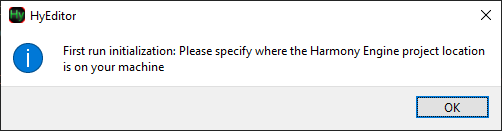
In the next dialog, browse to the location of the Harmony Engine project. You should be looking for the root directory of the Git repository. When you find a valid location, the red error bar will disappear and can you press OK. The folder contents will look something like this:
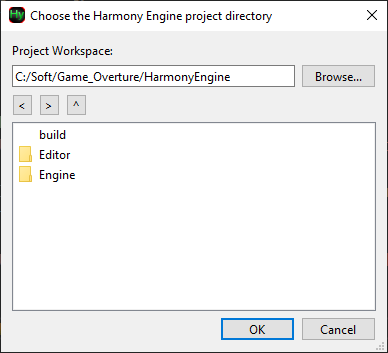
When you continue, HyEditor will remember this location, and various other editor preferences in the following location:
WINDOWS uses the registry: \HKEY_CURRENT_USER\SOFTWARE\Harmony Engine
LINUX stores in: ~/.config/Harmony Engine/
If you ever want to change the Harmony Project location, first close HyEditor. You can delete the old location then reopen HyEditor, or keep the old location and point to a new location by doing Tools -> Change Harmony Location
Uninstalling Harmony Engine
- Remove the editor preferences setting at:
WINDOWS uses the registry: \HKEY_CURRENT_USER\SOFTWARE\Harmony Engine
LINUX stores in: ~/.config/Harmony Engine/
- Then simply delete the Harmony repository directory and any HyEditor pre-built release you downloaded.